Desktop app
The desktop app runs the same Python audit engine as the CLI. Start with a
Privacy audit, review the findings, and save the session as a .dicomqc
project. Original DICOM files are never modified.
See Install for macOS, Windows, and Linux packages. Developers can also build from source.
Choose a workflow
Start with Audit modes for the distinction between Privacy audit and Dataset comparison. Then follow a worked Desktop example:
- Privacy audit: inspect one dataset and interpret findings.
- Dataset comparison: check source-to-candidate coverage and patient pseudonym consistency.
- Optional checks and outputs: add policy or UID checks, scanner inventory, and MultiQC output where supported.
The rest of this page describes the workspace and project controls shared by these workflows.
Start with a privacy audit
- In Setup, keep Privacy audit selected.
- Select Choose DICOM folder to include its files and subfolders, or Add single DICOM file for an individual file.
- Select Run privacy audit. No project policy is required.
- Select the run in the sidebar and review Findings, Reports, and Log.
- When the audit finishes, use File > Save Project to save the session.
For a first look without patient data, open Load example data beside DICOM inputs and select Privacy audit. It generates the same synthetic DICOM fixtures used by the automated tests and starts a run.
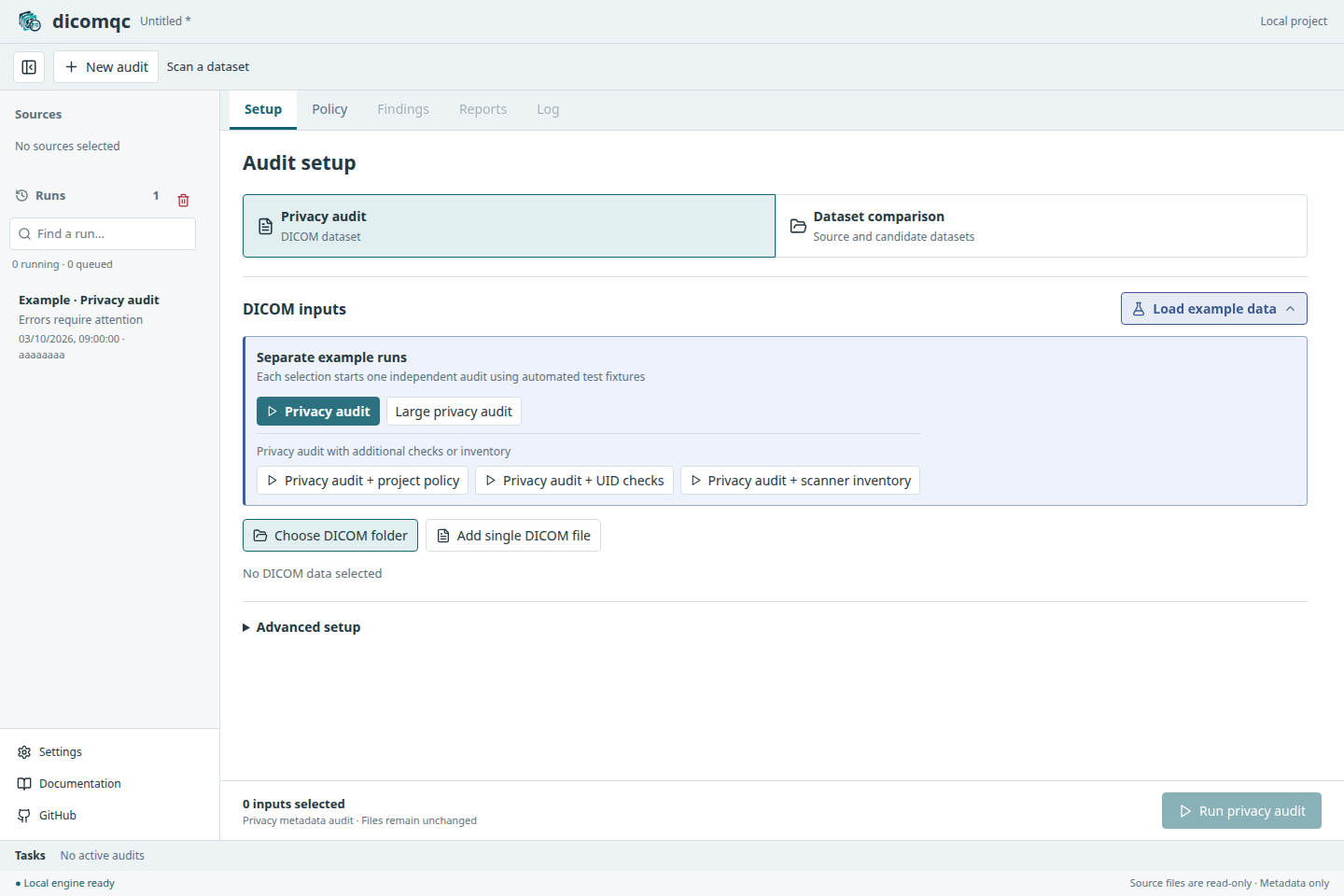
The application workspace with synthetic example data. Privacy audit is the primary choice; the other scan examples demonstrate additions to it.
Choose the right audit
| Audit | Required inputs | Purpose |
|---|---|---|
| Privacy audit (default) | A DICOM folder or individual files | Check metadata for identifiers, unexpected pseudonym formats, and private tags. |
| Dataset comparison | Original DICOM folder, processed candidate DICOM folder, and pairing CSV | Check file coverage and patient pseudonym consistency between paired DICOM files. |
Comparison does not create the candidate dataset. Use an external tool to pseudonymize it first; see Remediation. It compares the DICOM files, not completed runs in the project history. Neither mode inspects pixels or decides whether data can be shared.
Example runs
Each example starts its own run within the current project. It does not create another project or combine several scenarios into one audit.
- Privacy audit demonstrates the built-in checks.
- Privacy audit + project policy, + UID checks, and + scanner inventory demonstrate optional additions. They use their own configuration, not the policy selected in Setup.
- Large privacy audit opens a size slider and Run large cohort button. It generates 1,000 to 100,000 metadata-only files, with 150 deterministic errors and 100 warnings for testing pagination and report review.
- Dataset comparison has its own example under that mode.
The large example defaults to 10,000 files and uses 1,000-file increments. The installed app uses the fixture generators directly; it does not require a checkout of the test directory.
Advanced setup
For a privacy audit, expand Advanced setup below DICOM inputs. These options extend the built-in privacy checks; they are not additional audit modes. A Configured marker remains visible when optional checks or a policy are selected.
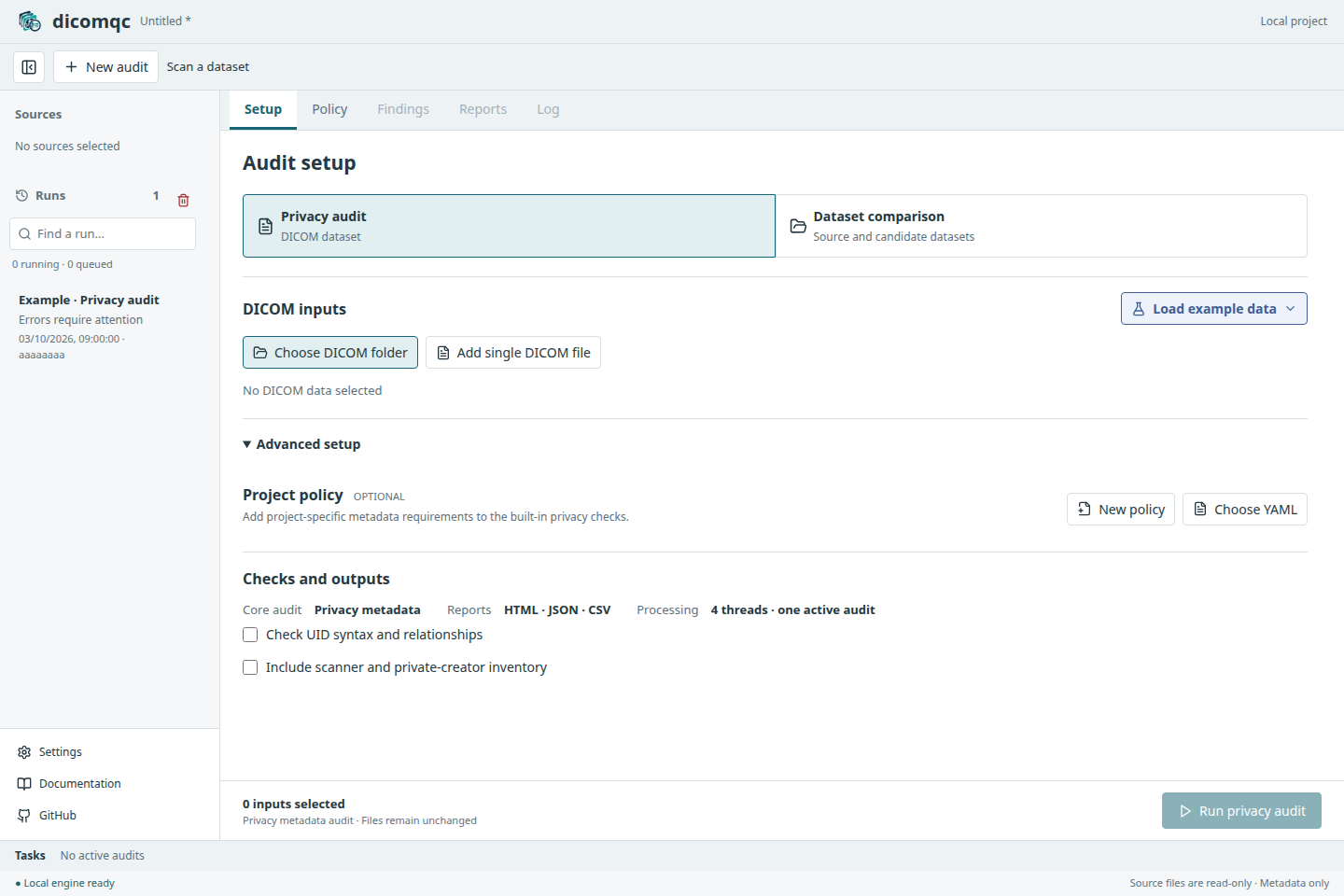
| Option | Effect |
|---|---|
| Project policy | Add project-specific metadata requirements from YAML. |
| Check UID syntax and relationships | Add checks for identifier syntax, role reuse, and study/series consistency. |
| Include scanner and private-creator inventory | Include observed equipment and private-creator labels in reports. Review these labels before sharing. |
MultiQC output is a separate preference under Settings > Report outputs. Writing its custom-content files does not require MultiQC. Rendering a complete MultiQC dashboard does.
Edit or remove a policy
In Project policy, select New policy or Choose YAML. The Policy tab provides YAML highlighting, line numbers, search, undo, and validation through the same parser used by the CLI.
| Action | Effect |
|---|---|
| Validate | Check the YAML and its rules without saving. |
| Save as and use | Validate, write a new YAML file, and select it for subsequent audits. The original file is not overwritten. |
| Reset YAML | Discard edits and restore the loaded or last-saved YAML; a new policy returns to its starter template. |
| Remove policy | Clear the policy, including an unsaved draft, and return to built-in checks. Saved YAML files are not deleted. |
Unsaved policy edits block audits and project saving. Save the edited policy or remove it to continue. Keep standalone YAML files outside DICOM input folders.
The selected policy applies to subsequent privacy audits and to candidate files only in comparisons. Synthetic examples use their own configuration. Saving a project includes its selected policy; completed desktop audits also retain their policy with the reports. The run log records the policy ID and digest. See Project policies for rule syntax.
Review results and runs
Select a run in the left sidebar. All result tabs refer to that selected run.
- Findings lists the checks requiring attention.
- Reports previews HTML, sortable and paginated CSV tables, and expandable JSON. Large JSON files may require export rather than an inline preview.
- Log shows recorded parameters, timestamps, events, threads, files read, and average end-to-end throughput. Download job record exports it.
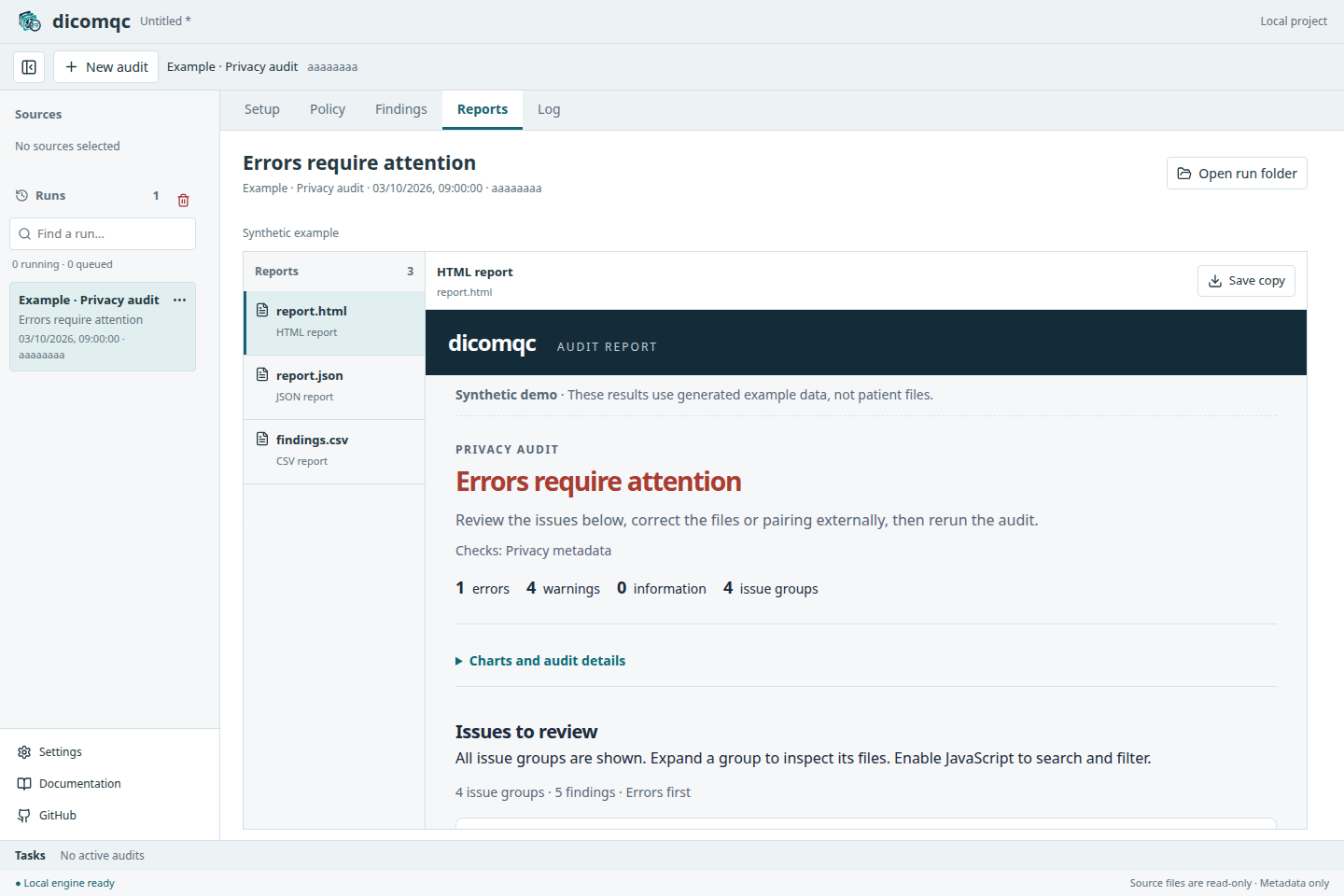
The report separates the audit name and enabled checks from its outcome. Errors in this example are expected findings, not an application failure.
Reports shows only that run's artifacts. Generated example policies and pairing manifests appear under Example inputs. Save copy exports a report to a chosen location without changing the project. HTML previews disable scripts; the exported standalone HTML retains its interactive controls.
Use the three-dot menu beside a run to rename or delete it. The trash icon beside Runs deletes all inactive runs after confirmation. Deleting a run removes its working reports, not the original DICOM data. Save the project to retain history changes in the project file.
One audit runs at a time; additional audits wait in a queue. Settings > Processing sets the metadata-thread count, up to the available logical processors. The default is four or fewer. Threads process batches within one audit; small audits may run serially.
Running jobs show their phase and elapsed time. Known totals use a progress bar; unknown totals use a spinner. Use Cancel audit on the selected run or Audit > Cancel Selected Audit. Cancelled or failed jobs do not publish a complete report; completed audits with privacy findings do.
Save a project or export a report
A project is one session containing multiple runs, including both examples and audits of your own datasets.
| Action | What is saved |
|---|---|
| File > Save Project | One .dicomqc archive with audit settings, run history, logs, findings, reports, and copies of the selected policy and pairing manifest. |
| File > Save Project As... | An independent snapshot under a new name or location. |
| Reports > Save copy | A selected report, separate from the project. |
| Log > Download job record | The selected run's recorded parameters and events. |
You do not select a SQLite or output folder. The app manages working storage. The CLI still uses the output paths supplied on the command line.
Original DICOM datasets remain external references, not embedded files.
Move the .dicomqc file to reopen its saved results elsewhere. If a referenced
dataset is unavailable, reports remain readable; select the dataset again to
run another audit. Opening a project asks for confirmation before accessing its
recorded external input paths.
Finish or cancel active audits before saving or changing projects. An asterisk marks unsaved setup or run-history changes. Save explicitly to update the portable file; retaining working data on this computer is not a substitute for saving the project.
Projects can contain sensitive paths, reports, policies, and pairing manifests.
A .dicomqc file is not an anonymized data package. Review its contents before
sharing, just as you would review individual reports.
Storage and removal
Working data is stored separately from saved .dicomqc projects. See
Install: storage and removal
for default locations and instructions for updating, uninstalling, or resetting
the app.
Menus and local operation
View opens Audit Setup, Project Policy, Findings, Reports, or Job Log. Help provides Documentation, Report an Issue, and Check for Updates. Check for Updates contacts GitHub only when selected and compares your Desktop version with the latest public stable release. It sends no DICOM data or reports and does not download or install updates automatically. Reporting an issue opens GitHub; it does not automatically attach data or logs.
The native shell starts an authenticated FastAPI service on loopback. It calls the Python audit functions directly, not the CLI, and runs each audit in a separate worker process. No remote audit server is required. About dicomqc lists the DICOM and reporting components. On macOS, About, Settings, and Quit are in the dicomqc application menu. On Windows and Linux, About is under Help, Settings under View, and Exit or Quit under File.
Use Quit (Exit on Windows) or close the window. Active audits and unsaved changes require confirmation. Closing the app stops its service and workers. An audit interrupted by an unexpected shutdown is marked as interrupted when the working session is reopened.
Build from source
Developers need Python, Node.js, Rust, and the operating system's Tauri prerequisites. From the repository root, create and activate a virtual environment, then run:
python -m pip install -e ".[api]"
npm --prefix app ci
npm --prefix app run desktop
The development launcher uses .venv/bin/python on Unix or
.venv/Scripts/python.exe on Windows. Set DICOMQC_DESKTOP_PYTHON to use a different
interpreter. The frontend is built and embedded in the native app.
Packaged builds bundle Python and dependencies. Their intended users do not need a separate Python installation. The repository's Build desktop installers workflow supports manual platform selection and targets macOS Intel and Apple Silicon, Windows x64, and Linux x64 and ARM64. It tests the bundled engine and native integration, then checks each packaged application. Run it manually from Actions and enter an existing release tag. Selecting all builds the five platforms and attaches them to a draft GitHub Release; selecting one platform produces workflow artifacts only. Pushing a tag does not start installer builds or PyPI publication. PyPI has its own manual workflow with a release-tag input.