Optional checks and outputs
Choose an audit mode first. These settings add checks or outputs to that mode; they do not create a different kind of audit.
Privacy audit: Advanced setup
Expand Advanced setup below DICOM inputs. A Configured marker remains visible when a policy or optional checks are selected.
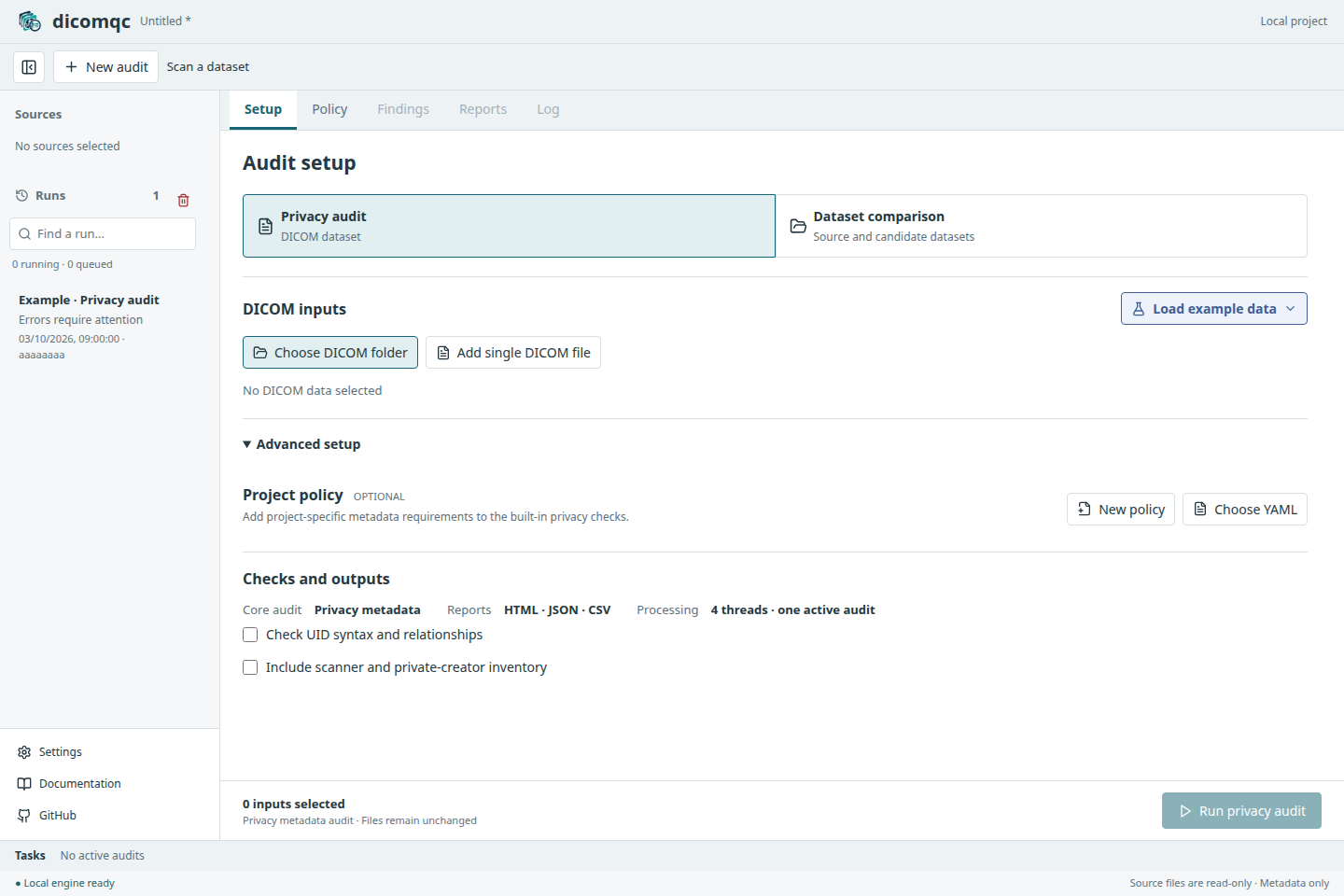
| Setting | Use it when |
|---|---|
| Project policy | You need specific empty fields, approved values, or pseudonym formats |
| Check UID syntax and relationships | You need UID syntax, role reuse, and study/series consistency checks |
| Include scanner and private-creator inventory | You need declared equipment and private-creator labels |
Built-in privacy checks remain active. Inventory labels may themselves contain identifying information; review them before sharing.
Project policy in either mode
Choose New policy or Choose YAML, then edit in Policy. Validate checks syntax and rules; Save as and use selects the saved policy. Reset YAML discards edits; Remove policy returns to built-in checks without deleting the YAML file.
The policy applies to subsequent Privacy audits and to candidate files only in Dataset comparison, not to completed runs. Save or remove unsaved edits before running an audit. See policy syntax for supported rules.
Example configurations
Under Privacy audit, Load example data offers separate examples with a policy, UID checks, or scanner inventory. Each starts a run using its own configuration, not the policy selected in Setup. Inspect its reports and log to see what was enabled.
Large privacy audit lets you choose the number of synthetic files. It includes known errors and warnings so you can try the results table and measure run times. Synthetic timings may not reflect performance on real datasets.
Reporting and processing
Both modes produce HTML, JSON, and CSV. Under Settings > Report outputs, enable MultiQC custom content for Privacy audits. Generating these files does not require MultiQC; rendering a MultiQC dashboard does.
Settings > Processing controls threads within an audit. One audit runs at a time; additional runs queue. More threads do not guarantee a speedup on small datasets or slow storage. The Log tab records timing.