User journeys
Select a task below. Use the bundled Synthetic longitudinal demo for clinical examples and the Synthetic cross-sectional demo for molecular analyses. Apply your dataset selection before starting.
Prefer a demonstration? See the video tutorials.
These examples demonstrate the software, not biological findings. The autoimmune demo has no treatment history or repeated visits; use the Synthetic longitudinal demo for medication and longitudinal examples.
- Find patients
- Inspect data
- Compare cohorts
- Compare measurements
- Compare phenotypes
Journey 1: Find patients taking biologics
- Open Query with Workspace selected.
- Ask “Which patients take biologics?”
- Check the matching patients and the filters used.
- Choose Save cohort and name the group.
Medication-class questions may need an enabled LLM. For a first query without one, ask “Which patients have Crohn Disease?”
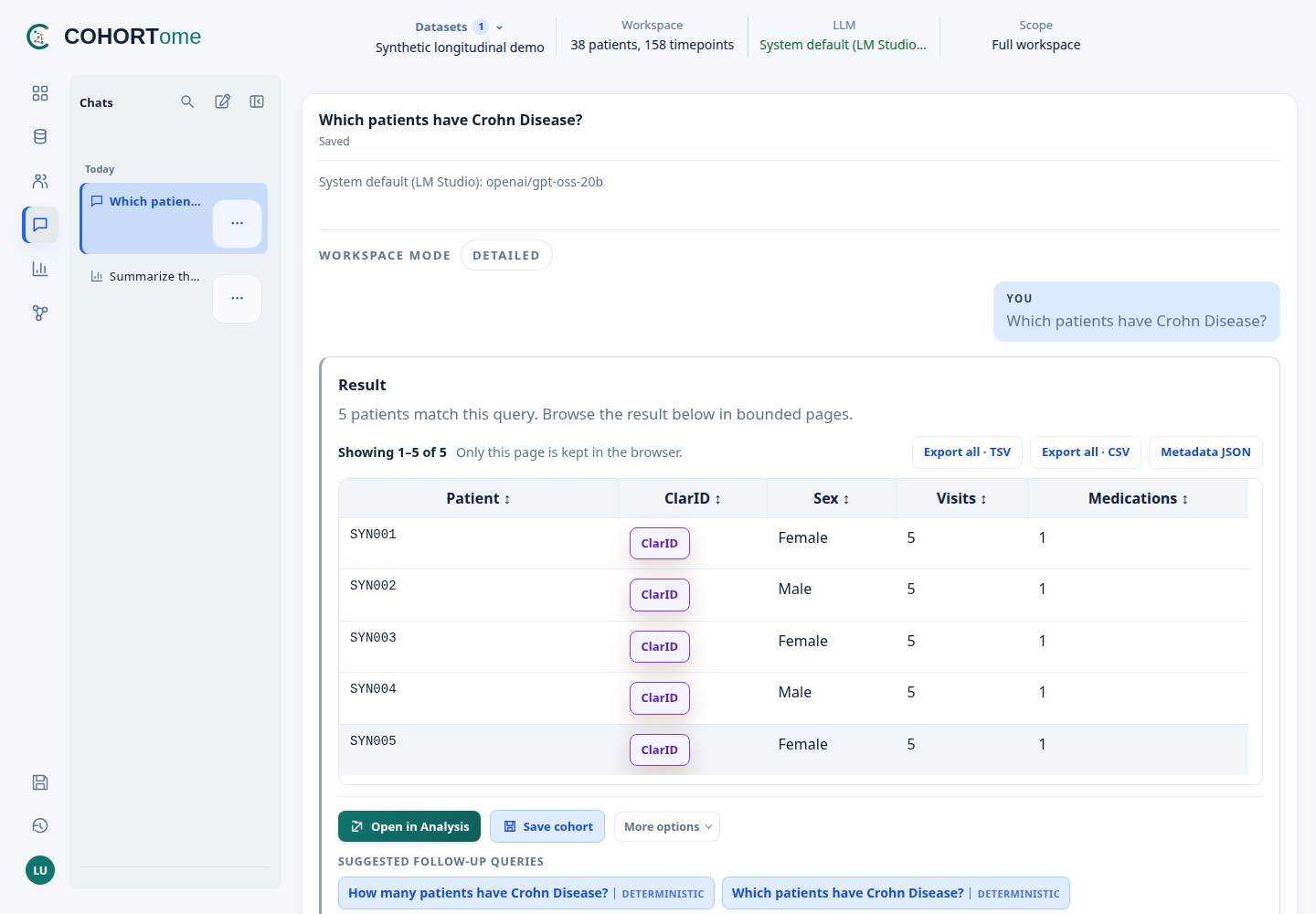
Use Prompt scope: previous result to refine a supported selection. Otherwise, each question searches the workspace. Saving a paginated result keeps all matching members, not only the visible page.
Missing treatment records do not mean that nobody takes a treatment. The reply should identify missing data rather than report a false zero.
Ask a general question
General questions use the model without attaching workspace data.

- Select General question beside the Query input.
- Ask “What is infliximab?” or “Erkläre kurz, was Infliximab ist.”
- Read the model's answer.
- Switch back to Workspace to ask about your datasets.
An enabled model is required. A General question cannot find patients or save
a cohort. You can also use this mode in Analysis. The reply was generated by gpt-oss-20b; model wording can vary between runs.See a completed answer from LM Studio
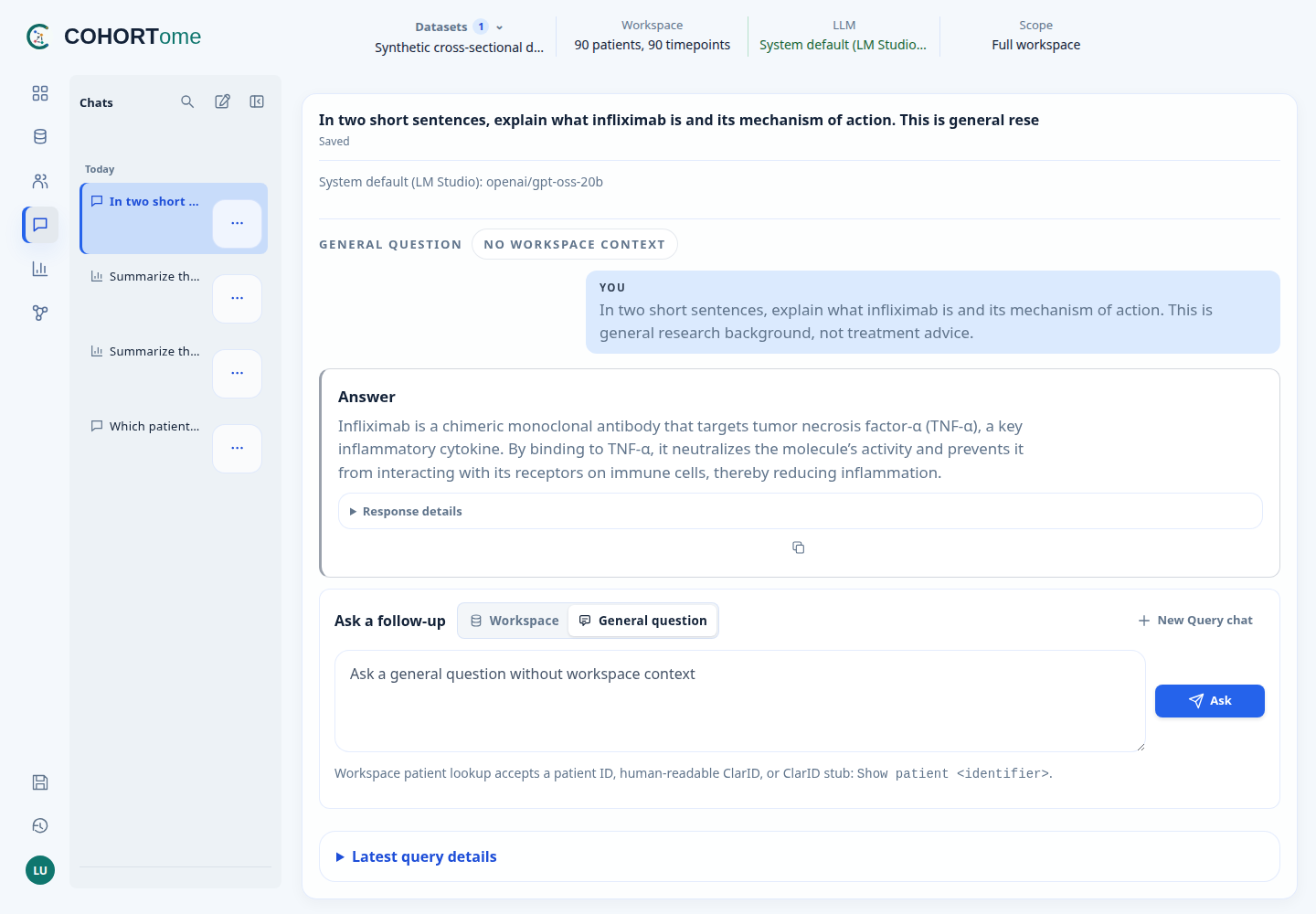
Workspace records are not attached, but the text you type and recent general-question history are sent. Do not paste confidential information into a request to an external provider. Check medical explanations against reliable sources.
See Query for result details, sorting, and exports.
Journey 2: Learn more about the biologics subset
- From the Query result, choose Open in Analysis.
- Select Describe my cohort for a summary without an LLM.
- Inspect counts and missing fields.
- Open Cohorts → Members to find an individual to inspect.
In Dashboard → Patients, search that patient's ID or ClarID. Review linked samples and assays, then open the patient's timeline.
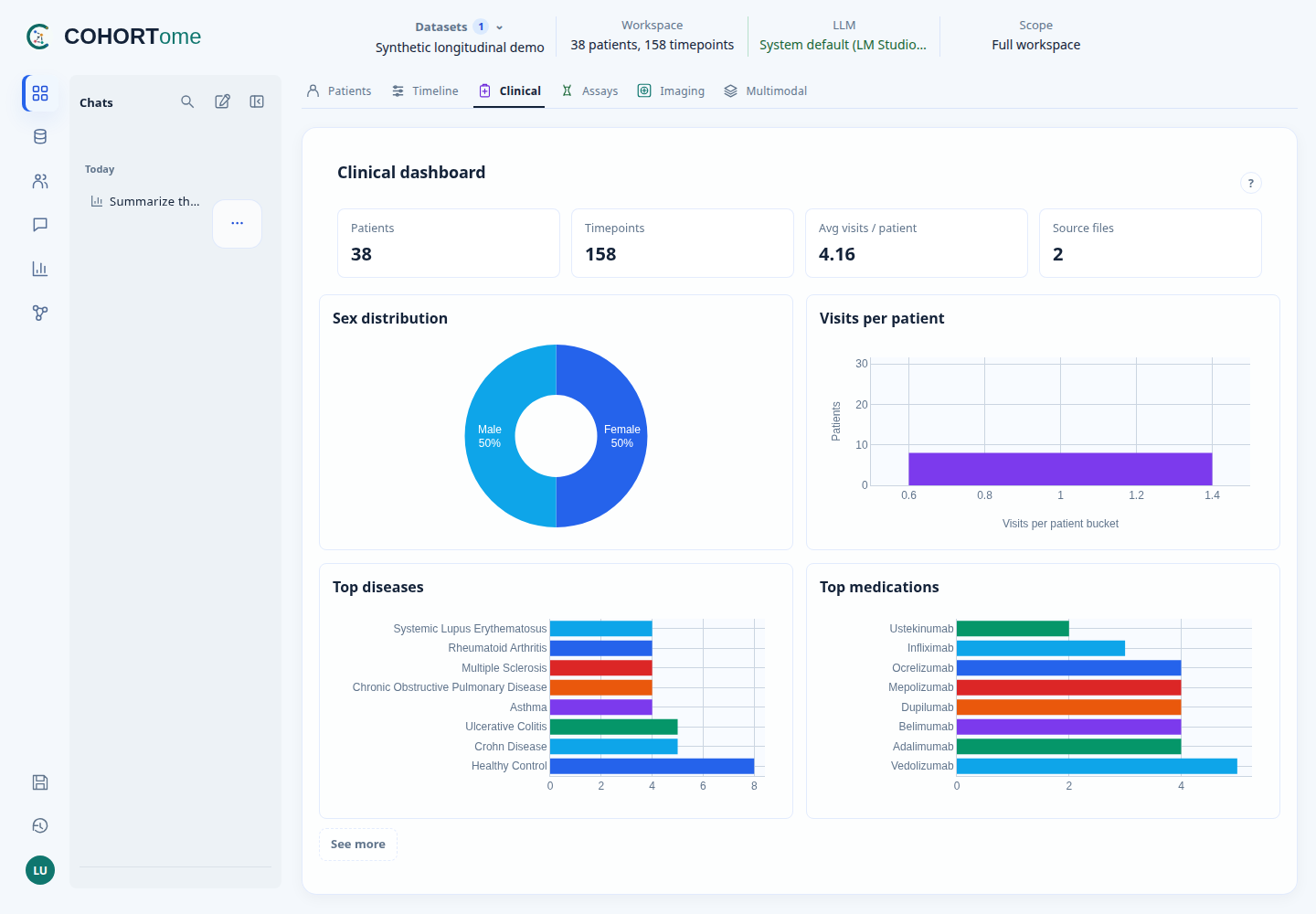
Dashboard does not automatically inherit a Query subset. Its summaries describe the active workspace.
Find patients with several data types
Open Dashboard → Multimodal, select the required types, then inspect Matching patients.
- At least these types allows additional data.
- Only these types excludes additional non-clinical types.
- Clinical records are required only when Clinical is selected.
Choose Save cohort to keep the matching patients. Their source datasets remain attached; matching IDs from different datasets stay separate.
Available modalities do not prove that specimens or visits match. Check sample links and Coverage limitations. A missing assay in this view does not establish that it was never performed.
See Dashboard for Timeline, Assays, and Imaging.
Journey 3: Compare two medication cohorts clinically
Use a dataset with treatment records and repeated measurements.
- In Query, find patients with Crohn Disease who take Infliximab.
- Save the result as a cohort.
- Find and save patients with Crohn Disease who do not take Infliximab.
- Open Analysis and attach the groups as Cohort A and Cohort B.
- Choose a clinical comparison method and complete Inputs.
- Review the usable observations, run, and inspect the results.
For trajectories, select a numeric Clinical measurement with repeated dated values in both groups. For Kaplan–Meier, also specify the event threshold and review timing assumptions. The example marker in a prompt does not substitute for selecting an available measurement.
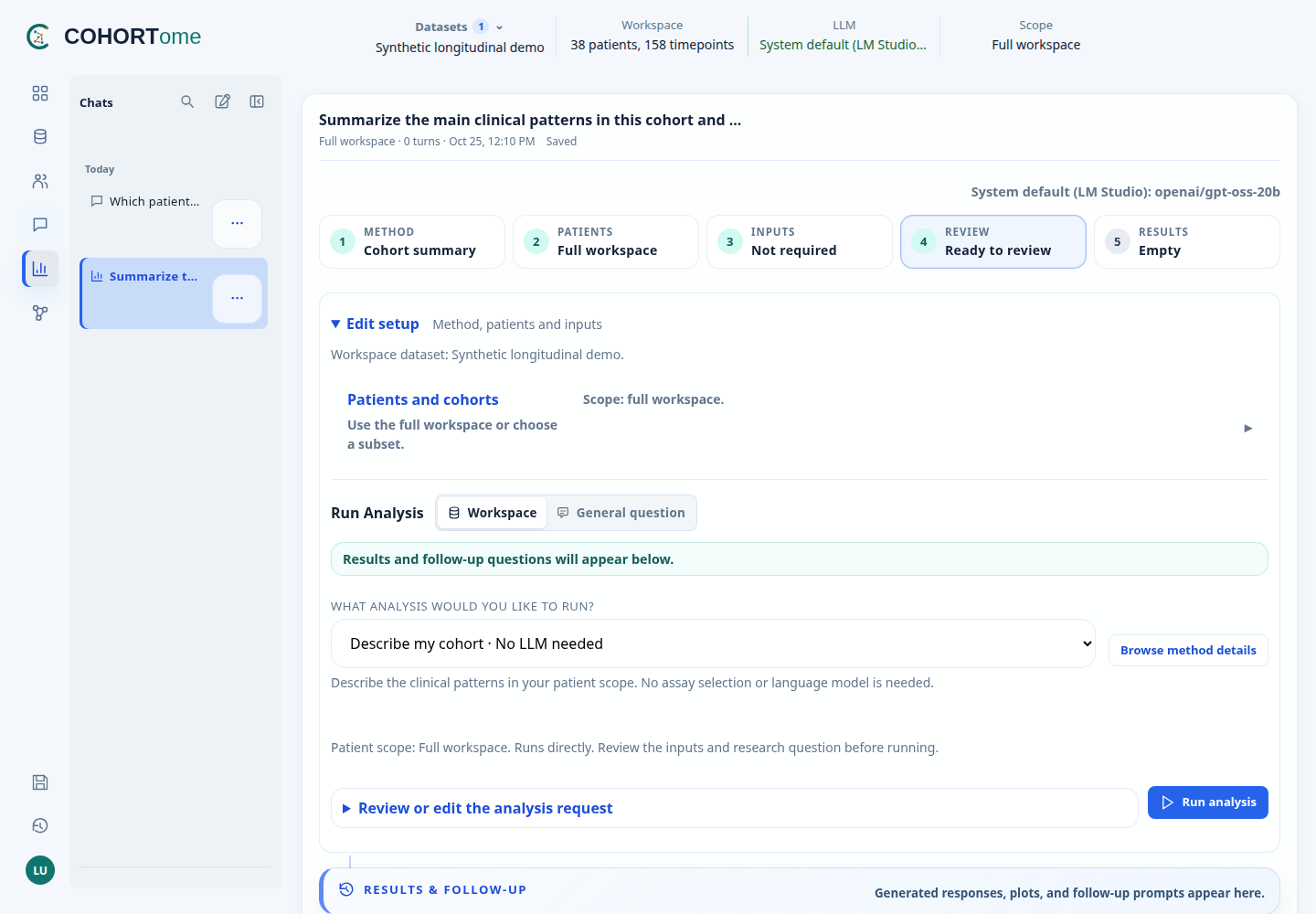
Read exclusions, sample counts, and method notes before interpreting the plot. Expand Result files for tables and parameters. An optional LLM explanation does not replace review of those outputs.
Treatment groups may differ in disease severity, treatment selection, or other factors. A plot alone does not establish that treatment caused the difference.
Journey 4: Explore transcriptomics differences between two groups
Load only Synthetic cross-sectional demo.
- In Query, find and save patients with Systemic Lupus Erythematosus.
- Save a healthy-control cohort.
- In Analysis, select limma-voom and attach the two cohorts.
- Select the synthetic RNA assay.
- Check matched samples in both groups, review, and run.
- Inspect the tested genes, effect sizes, adjusted p-values, and result files.
This demo uses fractional expected-count-like values. It is not suitable for DESeq2's raw-integer-count input requirement. Assay sample counts may differ from patient counts.
Follow up across modalities
Choose Associate two measurements and turn A/B comparison off. Use an example button, or select:
- Flow cytometry:
CD4_T_cells_fraction - Serology:
CRP_mg_L
Review the feature descriptions and units, then run. Inspect the scatter plot, overall and within-disease correlations, and excluded observations.
This compares two measurements; it is not an integration model for all assays.
See matching rules and limits. The custom-script prototype
requires a configured Docker sandbox and the unchanged bundled autoimmune demo.
Restricted datasets are not accepted. Choose a language. Paste existing code, or generate a data-aware template and
check package versions and matched sample counts before sending it to a coding
assistant. Review returned code before running it. The template describes the
inputs; it does not validate the analysis.Try a custom Python or R script
Journey 5: Use Pheno-Ranker and reuse selected samples
- Open Pheno-Ranker.
- Choose Cohort comparison, using the workspace or a saved cohort.
- Check the setup summary and run.
- Inspect the heatmap, MDS plot, and network when enabled.
- Select records in a plot and choose Save cohort or Open in Analysis.
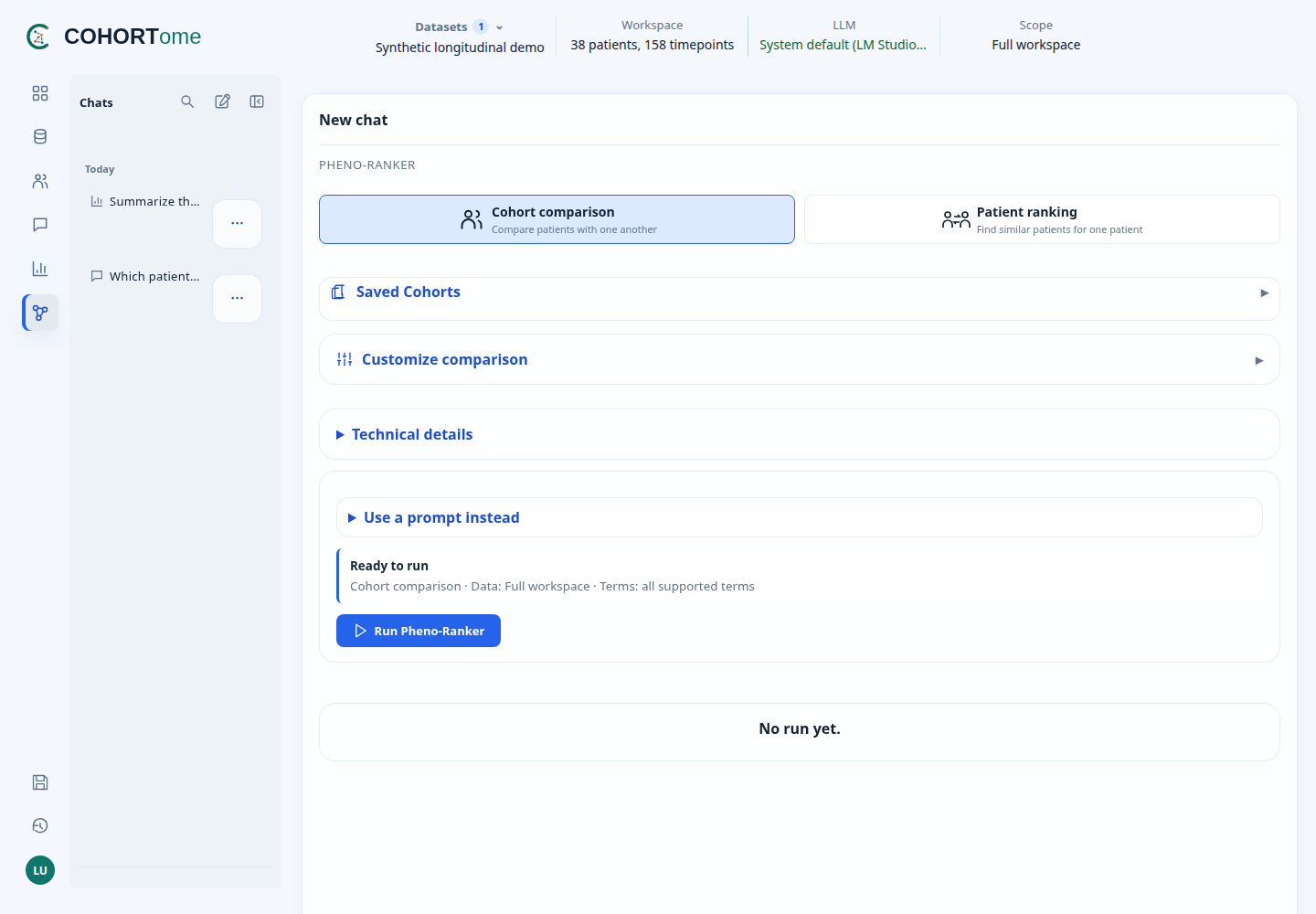
For one target, choose Patient ranking and select a patient or visit from the search field. You do not need to write a prompt.
Explain results shows computed evidence. Explain with LLM requests a
short model interpretation. Check either against the scores and shared or
differing features. Enable Render UMAP in Settings before a new cohort run. It requires the
optional dependencies and at least three records. UMAP selections can also be
saved or opened in Analysis. Distances between displayed clusters are not the
original phenotypic distances.Optional UMAP projection
Use the app's transfer actions to retain sample and dataset identities. Do not strip prefixes or merge matching source IDs manually. A selected cluster is an exploratory group, not a validated disease subtype.
See Pheno-Ranker for metrics, plots, and saved results.
Export, organize and return later
Open Cohorts to find a saved group, inspect members, rename it, or export data.
| Export | Includes |
|---|---|
| Membership | Saved IDs and cohort metadata |
| Clinical | Current clinical records for saved patients, including all visits |
| Molecular | Supported assay matrices and sample links |
Exports use current source data, not frozen inputs from an old run. They exclude raw sequencing files and DICOM pixels. See export details and limits.
Query, Analysis, and Pheno-Ranker chats save automatically. Use folders and pins to organize them. Load this chat’s datasets restores its original selection if it remains available and unchanged. Rerun a restored Query before using table exports or cohort actions.
Deleting a chat keeps generated runs and files; cleanup is separate in Settings. Save project creates a same-installation resume file, not a data bundle or backup. Protect it like other research exports.
Settings and software versions
In Settings, change the theme or supported plot palettes. These affect interactive charts, not existing R-generated images or the separate OHIF viewer.
Background-run notifications appear while the app is open; they are not email or operating-system notifications. Keep Desktop open until jobs finish.
Use Settings → About COHORTome → Copy version report when reporting a problem. It includes detected versions, not patient data or configuration. On Web it describes the server, not separate workers or imaging services.