Saved cohorts
A saved cohort records a group of patients or samples and their source datasets. Use it again in Analysis or Pheno-Ranker, or export its data.
Save a group
Choose Save cohort from:
- a Query result;
- filtered patients in Dashboard → Patients;
- a Pheno-Ranker plot selection;
- matching patients in Dashboard → Multimodal.
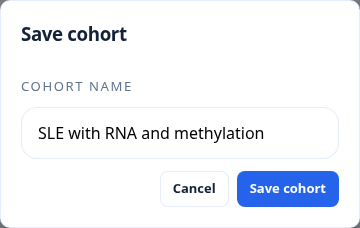
Give the group a descriptive name. Saving a paginated Query result includes all matching members, not just the visible page.
Example: name a cohort selected in Multimodal
Find and use a saved cohort
- Open Cohorts in the left navigation.
- Search by cohort name or dataset.
- Inspect Members to check the selection.
- Choose Use in → Analysis or Pheno-Ranker.
If the source datasets are inactive, choose Load datasets first. Opening the cohort library alone does not change the workspace.
Use Rename in the three-dot menu to change the name. This does not change membership or references from existing chats.
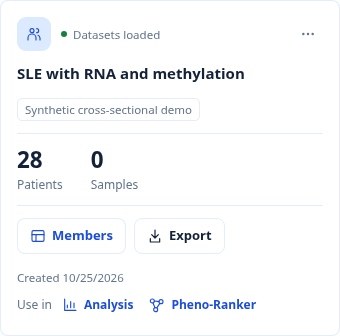
A saved cohort retains its source dataset and patient count, with actions for reuse and export.
To narrow a patient cohort by available assays, open Dashboard → Multimodal, choose it under Start from, and select the required data types. Saving creates a new cohort; it does not modify the original.
Patients with the same source ID in different datasets remain separate. Use the built-in transfer actions; do not strip dataset labels or replace a sample selection with a patient list. See patients and samples.
Rename and export a cohort
Open Export and choose the data you need:
| Export | Contents |
|---|---|
| Membership | Saved patient/sample IDs and cohort metadata |
| Clinical data | Current BFF records for the saved patients, including all visits |
| Molecular data | Selected assay matrices and sample-to-patient links |
Desktop opens a save dialog. Web uses the browser download. Exports require ownership of the cohort and current Detailed access to every source dataset.
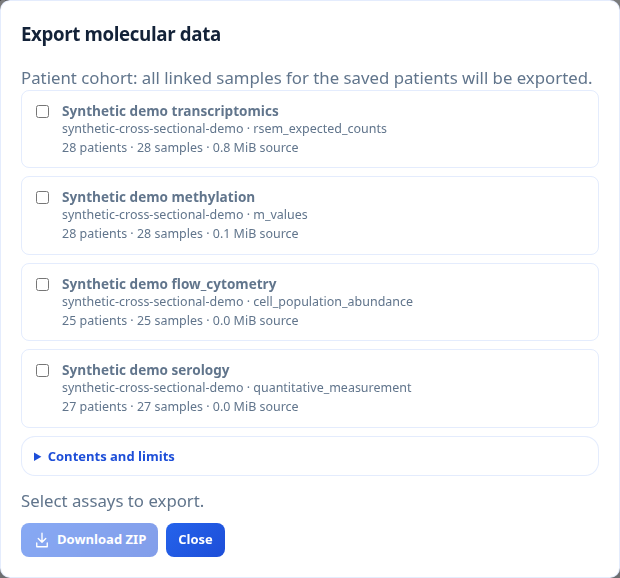
Choose which assay matrices to export. A patient cohort includes its linked samples; a sample cohort retains only its saved samples.
Protect downloaded files according to the source dataset's data-use conditions. Permission to view data in COHORTome does not grant permission to redistribute it.
Clinical and molecular export contents and limits
Export membership downloads IDs and metadata only. Export clinical data downloads a ZIP with BFF records separated by source dataset, a clinical-record index, saved membership, and a manifest. It includes all current clinical visits for the saved patients, even when the cohort was created from selected samples. Patients without clinical records are listed in the manifest.
This initial clinical export excludes assay matrices, raw sequencing files, and DICOM images. It reads current source records, not frozen inputs from an earlier analysis. Defaults are 100,000 clinical records and 256 MiB of uncompressed export content; larger requests must use a smaller cohort. Detailed access to every source dataset is checked at download time. Protect the downloaded files and follow the source dataset's data-use agreement; application access does not grant permission to redistribute research data.
Export molecular data first lists matrices with declared feature-by-sample structure and patient–sample linkage. Choose the assays to include. A patient cohort includes every linked sample in each chosen assay; a sample cohort keeps only its saved samples. The ZIP contains one TSV matrix per dataset and assay, sample-to-patient links, saved membership, and a manifest with the declared measurement type, units, feature namespace, and source-data fingerprint. Values remain as stored: no normalization, rounding, imputation, or feature filtering is applied. Dataset matrices remain separate, even when their source identifiers match.
Assays without supported matrix structure, declared linkage, or matching samples are shown as unavailable with a reason. Imaging matrices are not included in this export. Default size limits are 512 MiB per source file, 1,024 MiB of selected source files, and 256 MiB of exported content, with at most 100,000 feature rows across 32 assays. The package reads current source matrices; it does not recreate the exact inputs of an earlier analysis run.
Administrators (or the desktop owner) can change size limits in Settings → Jobs & storage → Export limits. Changes persist for the installation and take effect without restarting. The output limit applies to clinical, membership, query and molecular exports; source limits apply to molecular exports. Allowed maxima are 2,048 MiB per source, 4,096 MiB combined sources, and 1,024 MiB output. These are safety bounds, not recommended memory budgets. Exports are built in memory and can consume several times their output size; simultaneous downloads multiply that usage. The output limit checks uncompressed content and the final archive, not just compressed download size. Row limits are unchanged.
Export a saved cohort
Membership archive contents and limits
Choose Export membership from a saved cohort's Export menu. The archive contains:
membership.tsv: separate patient and sample membership rows, with available subject ClarIDs and exact sample-to-subject links. Unavailable or ambiguous links remain blank; the exporter does not infer them from ID prefixes.metadata.json: cohort name, stored membership with original identifiers, source kind/prompt, dataset IDs, timestamps and format notes. Internal data directories and credentials are excluded. Review user-entered names/prompts before sharing.
Membership is exported as saved, not silently refreshed from a new query. ClarIDs and sample links are taken from the current authorized workspace. This is not a project backup or an importable workspace snapshot.
Downloads require current Detailed access to every source dataset and ownership of the saved cohort. The export is limited to 100,000 combined membership rows and, by default, 256 MiB of uncompressed content. Existing result-file downloads in Analysis and Pheno-Ranker are unchanged.
Deleting saved cohorts safely
Choose Delete in the three-dot menu. Cohorts still attached to an Analysis chat cannot be deleted. Remove the reference first.
Deleting a cohort removes the saved selection, not its source records.
For the distinction between a cohort and the loaded workspace, see workspaces and cohorts.