Query
Find patients or samples, inspect the result, and save a reusable cohort.
Find your first group
With the Synthetic longitudinal demo loaded:
- Open Query.
- Ask Which patients have Crohn Disease?
- Review the reply and matching patients.
- Choose Save cohort or Open in Analysis.
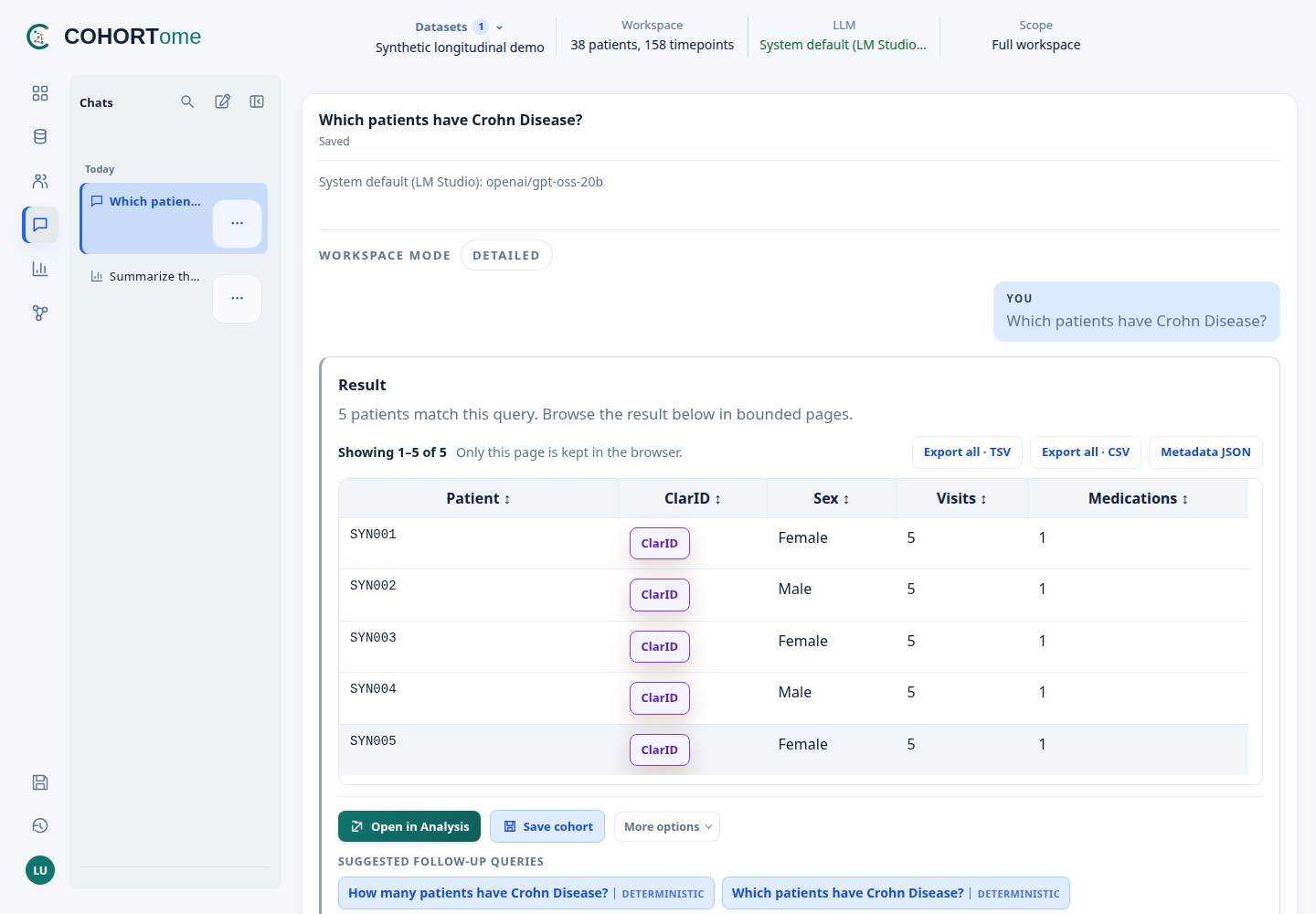
Your questions appear on the right; replies appear on the left. Result details are folded by default.
The exact disease query above works without an LLM. Questions such as “How many patients take biologics?” may use an approved model to translate the drug category into explicit filters. Missing treatment records are reported as missing data—not evidence that nobody takes a treatment.
Choose the right context
| Context | Use it for |
|---|---|
| Workspace | Questions about the loaded datasets; finding and saving cohorts |
| General question | Asking the model a general question without attaching workspace data |
| Prompt scope: previous result | Refining the last supported patient selection |
| Prompt scope: workspace | Starting a fresh search across the workspace |
General questions require a model and do not create cohorts. Supported workspace queries remain available without one.
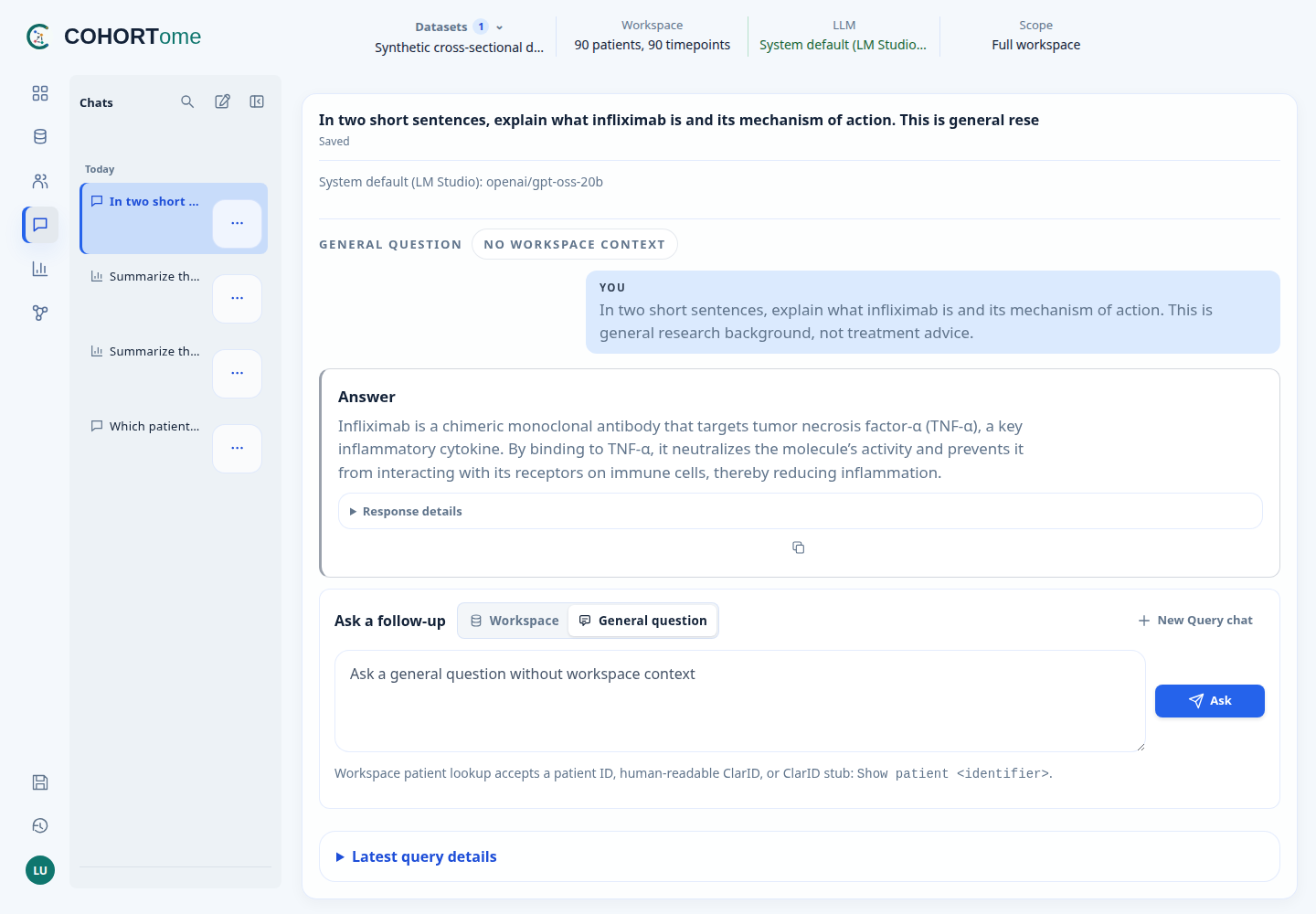
A real gpt-oss-20b reply from LM Studio. General question does not attach dataset records; this example illustrates the interface, not a validated medical answer.
Read, sort, and reuse results
Click a table heading to sort all matching rows, not just the visible page. Click again to reverse the order. Use the page controls for long lists.
- Save cohort: keep the full matching group for later.
- Open in Analysis: use the group as analysis input.
- Export all · TSV / CSV: download the full result table.
- Metadata JSON: download the query and dataset context.
These actions require Detailed access. Summary-only replies do not expose patient-level exports or cohort handoffs. To export clinical records or molecular measurements, use the Cohorts library.
How was the answer produced?
Open the reply's details to inspect its execution route:
| Label | Meaning |
|---|---|
| Deterministic | Local query logic produced the answer |
| LLM-planned | A model proposed a constrained plan; COHORTome executed it |
| LLM answer | A model wrote the answer using the permitted context |
Follow-up buttons show their route with a text label and colour before selection. In-app response detail and model-context permissions are separate: seeing a detailed result does not mean that detail was sent to a model. See Governed AI.
Chats, folders, and pins
Use New → Query chat in the sidebar to start another conversation. Query, Analysis, and Pheno-Ranker chats share folders and search. Their icons identify the tool. The three-dot menu offers rename, move, pin, and deletion.
Drag the Chats divider to resize it. The magnifying-glass button opens chat search; Escape clears and closes it. Folders organize conversations, not datasets or access permissions.
Changes save automatically. Wait for Saved; use Retry save after a failure. Reload saved chat asks before discarding unsaved edits from this window. Query currently retains up to 100 questions and 2 MB per chat.
Deleting chats keeps datasets, saved cohorts, and generated runs/files. Settings → Clear chat history lets you choose chat types and whether to include pinned chats. Generated files have a separate cleanup action.
Reopen a chat after changing datasets
Choose Load this chat’s datasets to restore its original dataset selection. This does not import data or rerun results. The datasets must remain available and authorized. If source data changed, start a new chat.
Saved replies are snapshots. Rerun a query to use result pagination, exports, or cohort actions. Workspace and General-question model histories remain separate.
Identifiers and export details
Click a ClarID label to inspect its decoded fields. Subject ClarID on a sample row describes the linked patient, not a biosample code.
Exports preserve dataset identifiers and recheck access when downloaded. CSV/TSV files use UTF-8; import ID columns as text to preserve leading zeros. Potential spreadsheet formulas are prefixed with an apostrophe. The current default limits are 100,000 result rows and 256 MiB per download; administrators can change the size limit under Settings → Jobs & storage → Export limits. Oversized exports fail rather than silently truncate.
Metadata includes query text, dataset IDs, timestamps, sort settings, and a workspace fingerprint. Review user-entered text before sharing it. Server paths and credentials are not included.