Pheno-Ranker
Compare clinical and phenotypic profiles. Choose a mode, select your data, and run—no prompt or LLM is required.
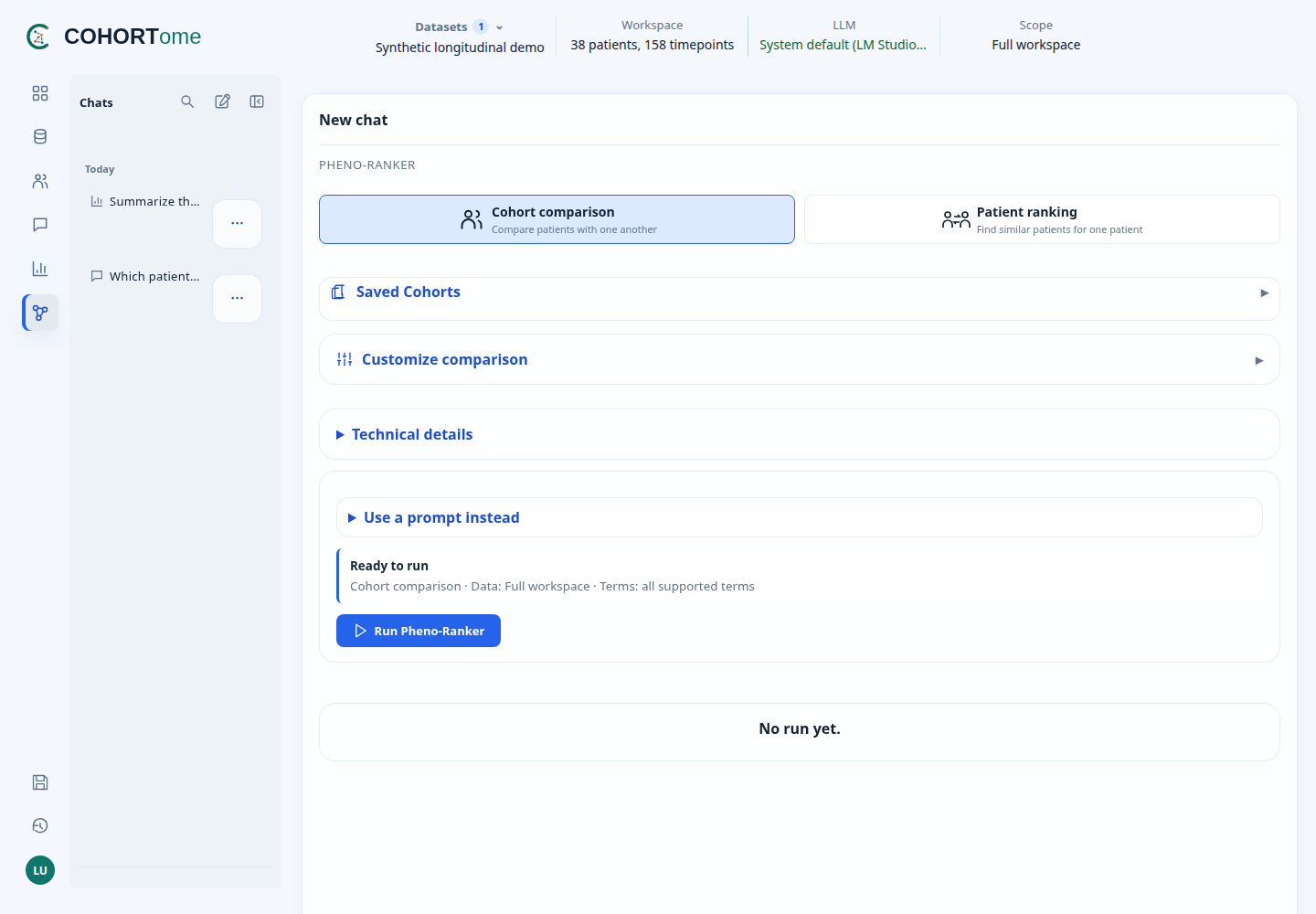
Compare a cohort
- Choose Cohort comparison.
- Keep the full workspace, or open Saved Cohorts to select a group.
- Check the summary above Run Pheno-Ranker, then run.
Open Customize comparison only when you need different terms, metrics, or output options. The default view keeps these controls folded.
Find similar patients
- Choose Patient ranking.
- Search Patient or visit to match and select an available record.
- Check the target and reference population in the readiness summary.
- Select Run Pheno-Ranker.
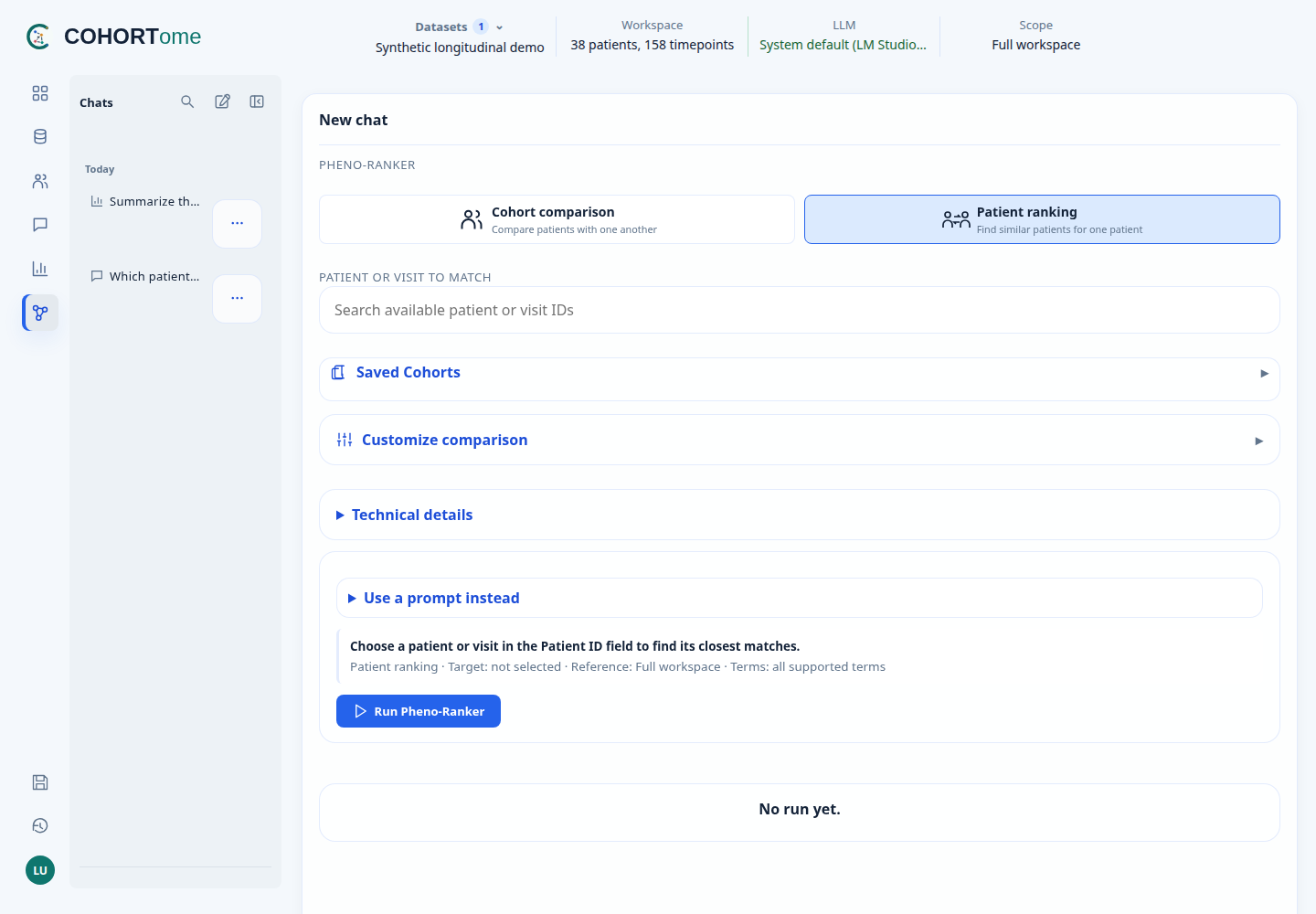
You select an existing record; you do not need to know the clinical JSON structure.
A longitudinal patient can have several records. Choose the relevant visit when you want to compare that observation rather than the patient's whole history.
Read the result
| Result | What to inspect |
|---|---|
| Patient ranking | Ranked matches, scores, and shared or differing features |
| Cohort comparison | Heatmap, MDS projection, and network when enabled |
| Explain results | Structured evidence computed from the output |
| Explain with LLM | A brief interpretation; supporting evidence is under Show details |
LLM explanations are requested as three short bullets: closest match, shared features, and differences or missing data. Check them against the computed scores. Similarity is not a diagnosis or treatment recommendation.
Select points or nodes in supported plots to save a cohort, copy IDs, or open the selection in Analysis.
Keep comparing in one chat
Each run appends your request on the right and its result on the left. Previous runs stay in the conversation. Show results reopens an earlier run without recomputing it; only one run's interactive plots are expanded at a time.
Use New → Pheno-Ranker chat for a separate conversation. Chats use the same folders, pins, and search as Query and Analysis.
Use a prompt instead
Expand Use a prompt instead to describe the comparison or choose an example. A prompt fills the same controls. Editing those controls makes them authoritative for the next run.
Supported requests use deterministic planning; others may need an approved LLM. Technical details contains the interpreted plan, reasoning, and provider information. Follow-up labels identify their planning route before you click.
Plots and metrics
Jaccard similarity increases with overlap; Hamming distance increases with differences. Check the metric before interpreting scores or graph edge cutoffs.
Enable Render UMAP in Settings for subsequent cohort runs. It requires the optional UMAP dependencies and at least three records. Projection parameters and package versions are saved in the run's metadata. Distances between UMAP clusters are not the original distances.
Data limitations and identifiers
Pheno-Ranker compares the supplied clinical records. Multiple visits or source files may contribute separate records; record count is not necessarily patient count.
Exact numeric values can make poor similarity tokens: CRP 9.8 and 10.1 may be treated as different features. Review the comparison terms. Clinically justified categorization belongs in data preparation, not an automatic interpretation of the resulting similarity.
In multi-file results, prefixes such as C1_ identify run-local reference
groups. Use COHORTome's selection and handoff actions to retain the correct
dataset and patient/sample linkage; do not manually strip identifiers.
Saved chats, files, and workspace changes
Wait for Saved beside the chat title. Retry save appears after a failure; Reload saved chat can discard unsaved edits after confirmation.
A chat is bound to its original workspace. Use Load this chat’s datasets when switching back, or start a new chat if the source data changed. Queued entries can check for completed results; Jobs shows execution status.
Deleting a chat keeps generated runs and files in Run history. Removing those files later can prevent the interactive result from reopening.