Datasets
Choose the datasets you want to work with. The applied selection is your workspace; Dashboard, Query, Analysis, and Pheno-Ranker use that selection.
Load a workspace
- Open Datasets.
- Select one or more datasets.
- Click Apply workspace.
- Check the patient and assay summaries in Dashboard.
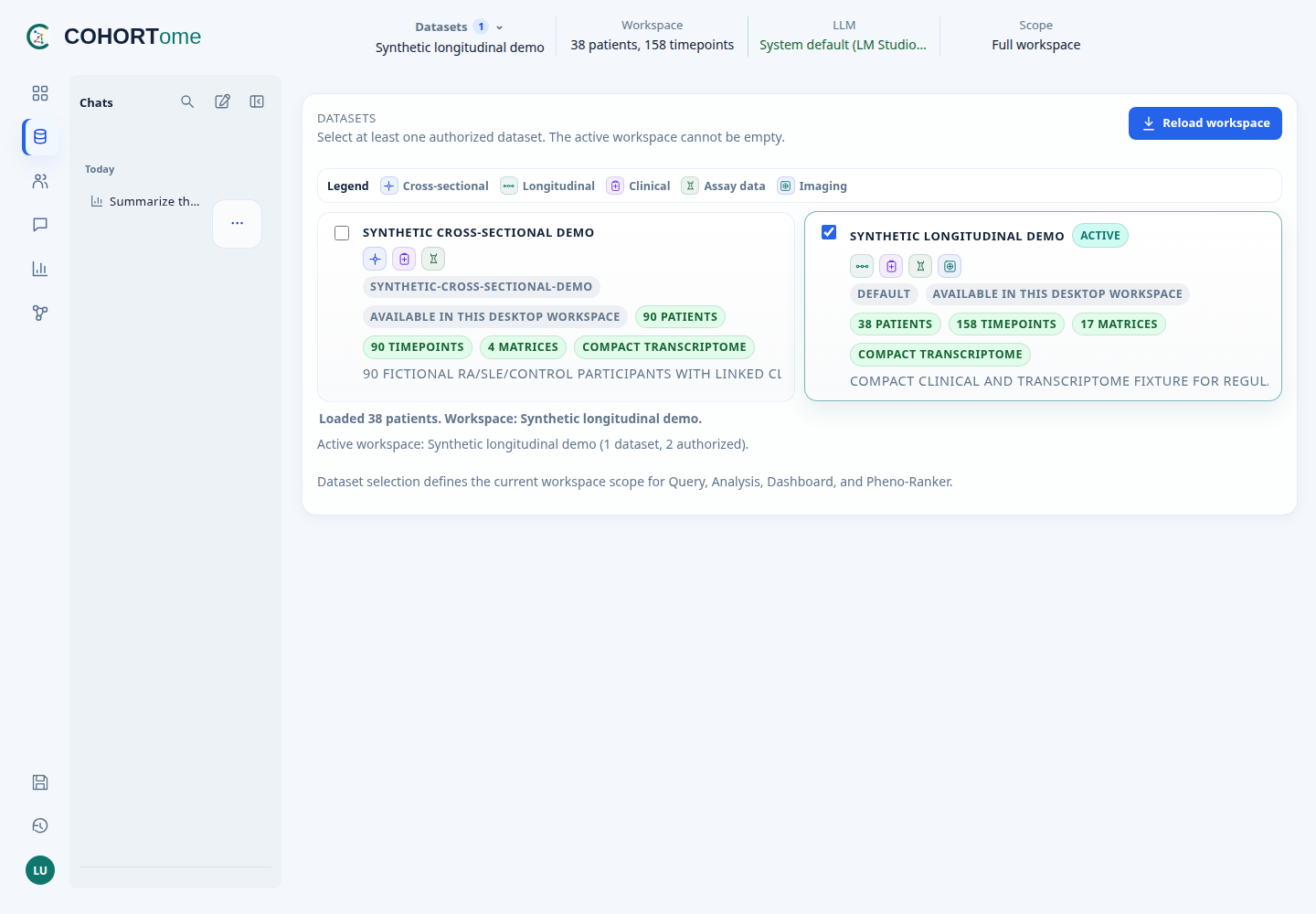
Changing a checkbox does not change the workspace. Pending changes take effect only after Apply workspace succeeds. At least one dataset must remain selected.
Read a dataset card
Cards show the dataset name, available data types, and study design when recorded. Use the legend or hover over an icon for its meaning.
- A single-timepoint icon indicates a cross-sectional study.
- Connected timepoints indicate a longitudinal study.
- Assay icons describe laboratory measurements.
- The imaging icon indicates linked studies or imaging measurements, not whether the viewer is online. Check Dashboard → Imaging for viewer status.
An absent study-design icon means the design was not declared.
If a dataset will not load
Read the message next to the workspace controls. A missing, stale, or failed query store must be prepared in Admin → Data before the dataset can load. Applying a workspace does not rebuild its stores.
A failed switch leaves the previous workspace active. Check the active dataset names before continuing.
You see only datasets your account can access. Ask the administrator to prepare a store or grant access. On Desktop, the local owner manages datasets directly. Dataset classification and model-sharing policies apply in both.
Dataset metadata and startup behaviour
The Synthetic longitudinal demo loads at startup. Other datasets load when selected and applied.
Study-design icons use the optional study_design field in the dataset manifest:
cross_sectional or longitudinal. Clinical record representation
(person or snapshot) does not determine study design.
See study designs, assays and modalities, and dataset configuration.