Dashboard
Check the available records and measurements before selecting patients or running an analysis.
On a fresh installation, Open demo prepares and opens the bundled synthetic cross-sectional dataset. In a shared web deployment, preparing a dataset requires an administrator; other users can open it once prepared. Choose datasets opens the workspace selector instead.
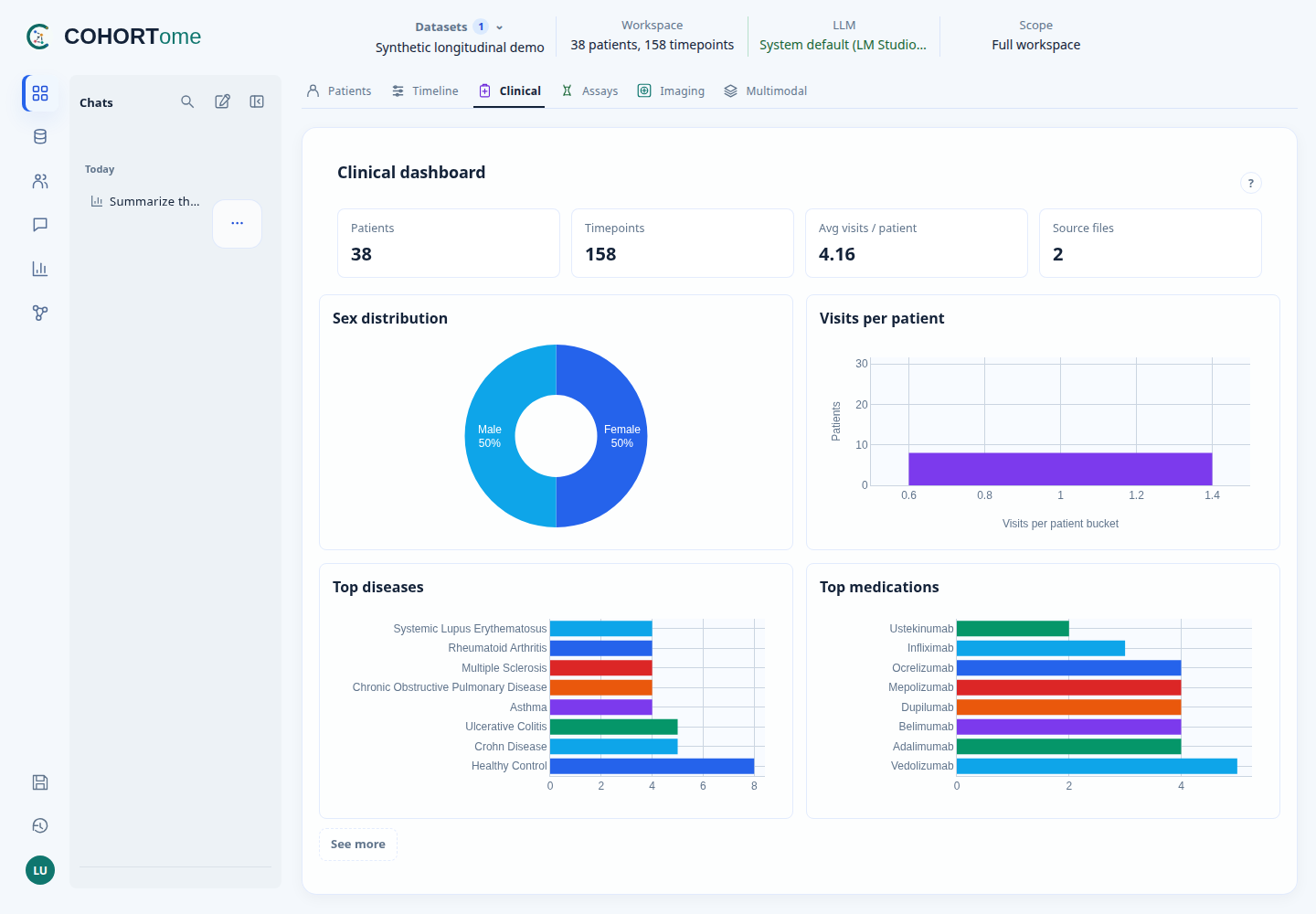
| View | Use it to |
|---|---|
| Patients | Browse or search for a patient, then open their timeline |
| Timeline | Inspect clinical records and linked samples over time |
| Clinical | Check patient counts, visits, diseases, and medications |
| Assays | Inspect laboratory matrices, feature counts, and coverage |
| Imaging | Find DICOM studies, open the viewer, and inspect derived measurements |
| Multimodal | Find patients with several data types and save a cohort |
Patient overview
Open Patients and click the search field to browse the first 20 patients. Use Load more patients, or type a patient ID or ClarID to filter the list. Arrow keys and Enter also work. Selecting a patient opens their Timeline. Identical IDs from different datasets remain separate.
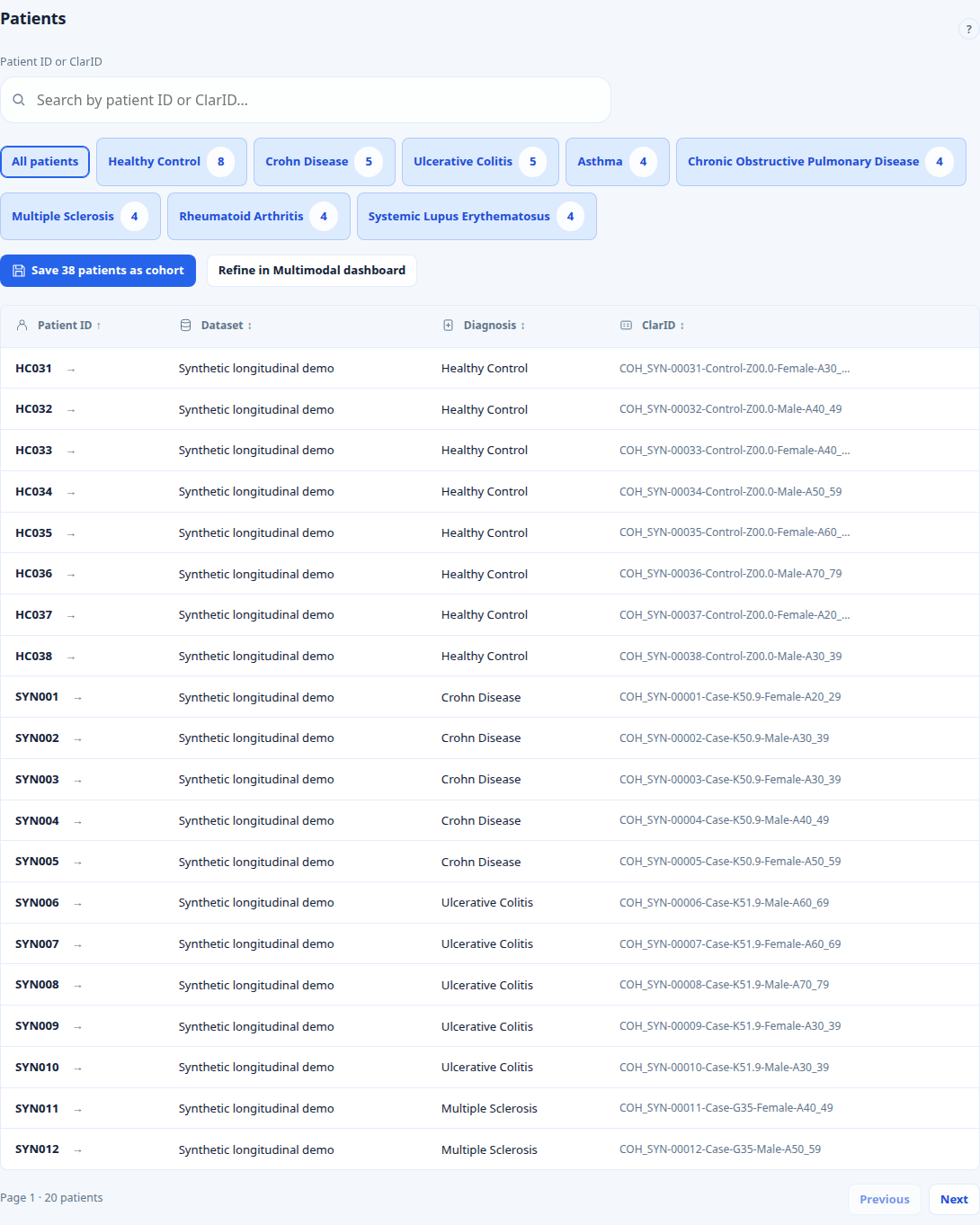
Filter by disease or search by ID; save the matching patients or refine them by assay availability.
The Timeline inventory lists clinical records alongside linked sample IDs and assays. Dates, visits, specimen material, and sample ClarIDs appear when supplied. Not recorded means that the source metadata does not provide the field.
Clinical rows use the same table layout as assays: visit identifier, data type, recorded time and counts of clinical entries. View clinical values expands that row to show diagnoses, phenotypes, measurements and treatments, including ontology IDs. Selecting a clinical marker opens its record's values automatically. The same table groups clinical records and samples under their exact visit identifier, in natural order (visit 2 before visit 10). Samples retain their assay grouping within each visit. Entries without a visit identifier appear under Visit not recorded. Matching dates alone do not establish a visit link. Technical details holds source metadata and the complete BFF JSON, collapsed by default. Clinical records are loaded in batches of 20; use Load more records for longer histories.
See the visit-grouped clinical and assay inventory
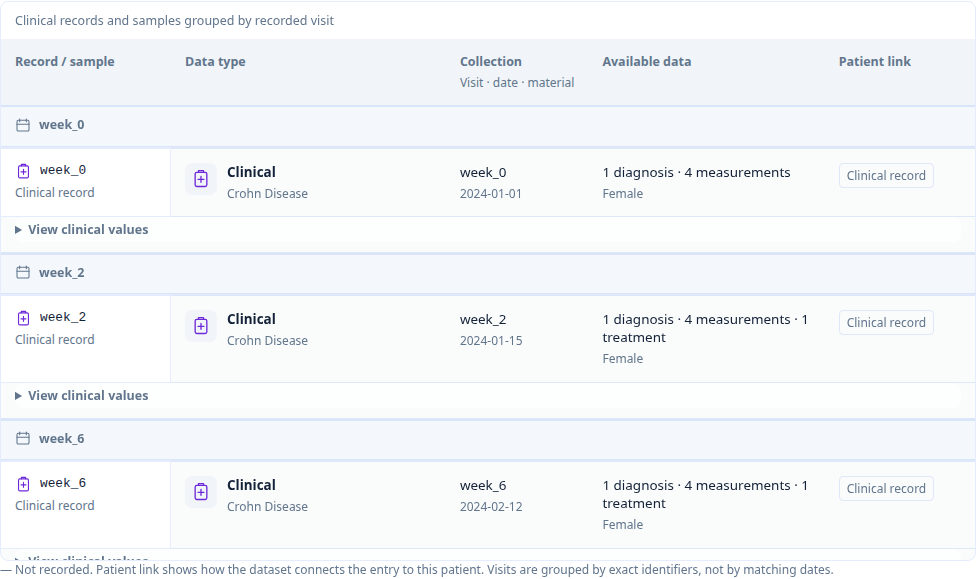
Clinical records and assays share one inventory. Missing visit links remain explicit.
Selecting a clinical marker opens that timepoint's record. All clinical timepoints restores the patient's full record list. The sample inventory continues to show all linked samples for the patient; selecting a clinical marker does not imply that every assay belongs to that visit.
It lists data available in COHORTome, not every assay ever performed. Missing links and unavailable assays are reported as limitations. Sample IDs do not necessarily represent distinct biological specimens.
Timeline
- Choose one dataset or all active datasets.
- Use Has data to require a data type, such as Proteomics.
- Select several types to require all of them.
- Click a marker, patient name, or grey span for details.
The plot shows 40 patients per page. Legend controls change visible markers, not which patients match the filter.
Grey spans run from the earliest to the latest recorded observation; they do not imply continuous monitoring. Undated assays appear under Date not recorded, rather than being assigned an estimated visit. Dates are calendar dates, not aligned study visits.
OLINK appears under Proteomics. Imaging markers represent derived measurements; DICOM studies are listed in Imaging.
Clinical dashboard
Check patient and timepoint totals, disease and medication distributions, and visits per patient. These summaries describe the loaded records; missing medication data does not establish that a patient takes no medication.
Assays dashboard
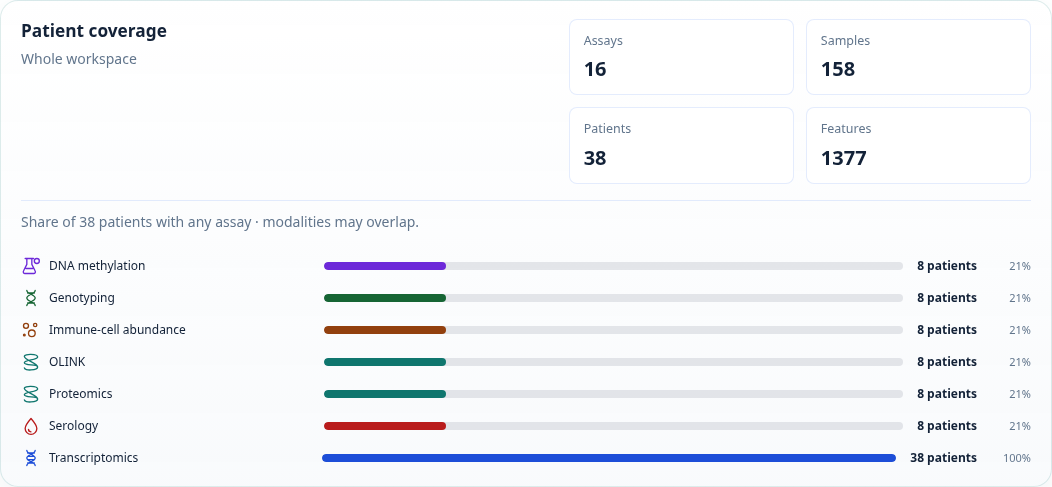
Check each assay's source dataset, modality, feature inventory, and sample coverage. In a multi-dataset workspace, confirm that the assay you intend to analyse comes from the expected dataset.
Laboratory assay totals exclude imaging. Use Imaging for studies and derived imaging measurements.
Imaging dashboard
Open a listed study when its viewer is available. COHORTome launches OHIF; pixels remain in the configured DICOM service.
A study listing confirms that metadata was registered, not that the image server is reachable. Use the viewer status and error message to check access. Derived imaging measurements are separate matrices produced outside COHORTome.
Multimodal dashboard
Find shared coverage
From Patients, choose Refine in Multimodal dashboard to carry all filtered patients across, including disease and ID/ClarID searches—not just the visible page. Start from shows the filtered group and its size. Choose All workspace patients there to remove this starting restriction. Switching tabs alone does not transfer filters.
Start from all workspace patients or an existing saved patient cohort. Select one or more diseases if needed (patients may match any selected disease), then select the required data types and choose:
- At least these types: require each selected type; allow additional data.
- Only these types: exclude additional non-clinical types.
Clinical records are required only when Clinical is selected. For example, select Systemic Lupus Erythematosus, Transcriptomics and DNA methylation to find SLE patients with both assays. Disease filters use recorded diagnoses across available visits, not necessarily at assay collection. Sample cohorts are not offered as starting groups because this view matches patients.
The combination plot shows observed data-type combinations and their patient counts. Filled dots indicate available types. Click a count to inspect a combination, then open Matching patients.
Choose Save cohort to keep the matching patients. Membership includes the source dataset, so repeated IDs across datasets do not merge into one patient. See saved cohorts to export or analyse the group.
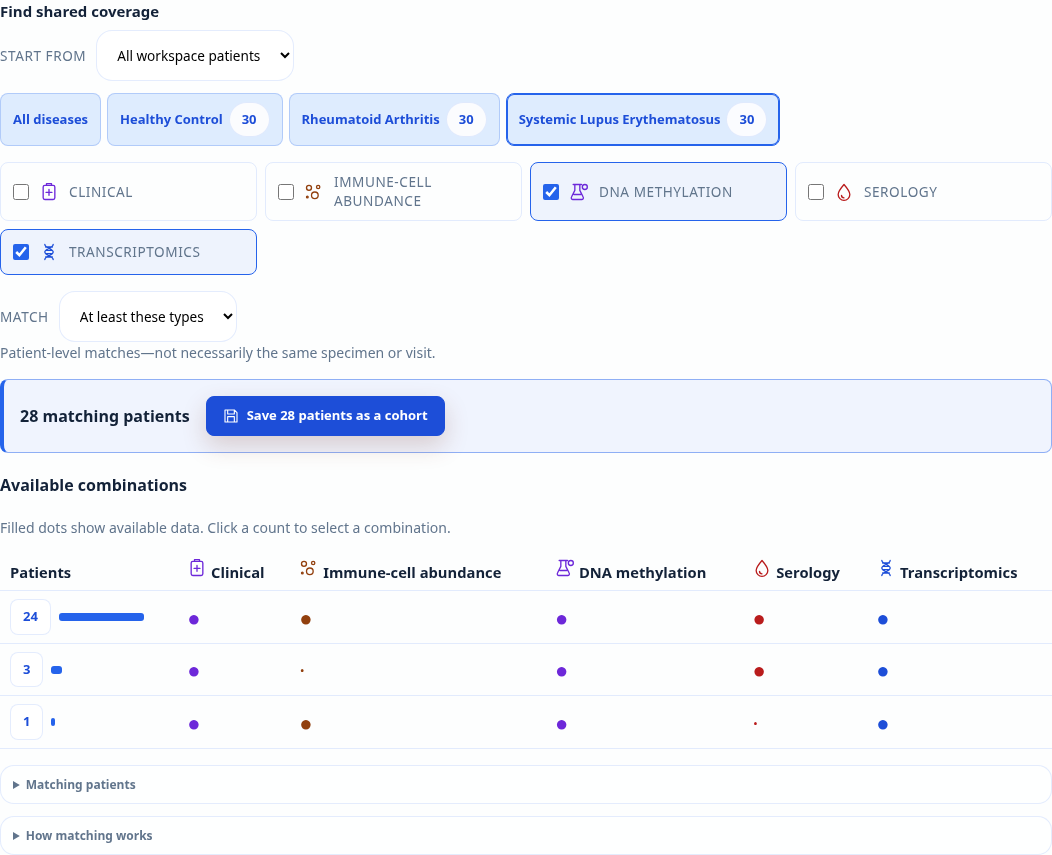
The synthetic example matches 28 patients. The combination rows show which additional data types they have.
Having two modalities for a patient does not establish that measurements came from the same specimen or visit. Read Coverage limitations and check the sample links before analysis. Coverage is not a quality-control result.
Coverage and feature preview
Missingness in selected features shows the six selected columns with the highest missing fractions in a bounded sample-level matrix. It does not inspect every feature in every source assay. Missing values may reflect absent measurements or unmatched IDs.
Choose Compare measurements in Analysis to select two features and run an association. Analysis explains the matching rules and statistical limitations.
How coverage is calculated
Coverage uses clinical IDs, assay matrix headers, declared sample linkage, and study metadata—not assay values. Invalid or undeclared links are excluded and reported. Patients with linked assays but no clinical record can contribute to coverage, but have no clinical record to inspect.
The selected-feature matrix joins by exact sample/timepoint ID. It does not extract numeric features from DICOM pixels. Imaging studies and imaging-derived measurements are separate data types; OLINK is grouped under Proteomics.
Patient lookup, timelines, and multimodal coverage require Detailed access to all selected datasets.
If the dashboard does not load
Use Retry dashboard after a loading failure. Retrying does not switch datasets, import data, or prepare query stores.
If the message says a store is not ready, prepare it in Admin → Data, or ask the Web administrator. An empty result means no matching records were found; it is different from a failed request.